> ## Documentation Index
> Fetch the complete documentation index at: https://docs.getsignalhub.com/llms.txt
> Use this file to discover all available pages before exploring further.
# Quickstart
> Start building your first tracker in minutes
The core concept of SignalHub is the **tracker**. A tracker monitors a specific topic and has its own sources, prompt, and settings.
## Follow / Fork a tracker
The easiest way to get started is to follow or fork a tracker from the community library.
You can explore the community library on [search](https://getsignalhub.com/search) to discover trackers shared by others. You can view each tracker's prompt, sources, settings, and updates.
On any tracker, you can:
* Follow: subscribe to its updates without managing any settings.
* Fork: create your own copy, then customize the prompt, sources, and settings. The copy is fully managed by you.
## Create a tracker
### Step 1: Create a tracker
* After signing in, you will be redirected to your [dashboard](https://getsignalhub.com/dashboard) where you can see your tracker list.
* If this is your first sign-in, the list is empty. Click "New Tracker" to create one. For inspiration, browse the community library in [search](https://getsignalhub.com/search).
### Step 2: Basic settings
 * Give your tracker a name to indicate its topic, for example "White House Watch: Immigration and Technology".
* You can enable or disable the tracker. If disabled, this tracker will be paused and you won't receive any updates from it.
* You can share your tracker with the community. When public, anyone can find it on [search](https://getsignalhub.com/search) and view its prompt, sources, settings, and updates. But your private notification channels are never shared.
### Step 3: AI settings
* Give your tracker a name to indicate its topic, for example "White House Watch: Immigration and Technology".
* You can enable or disable the tracker. If disabled, this tracker will be paused and you won't receive any updates from it.
* You can share your tracker with the community. When public, anyone can find it on [search](https://getsignalhub.com/search) and view its prompt, sources, settings, and updates. But your private notification channels are never shared.
### Step 3: AI settings
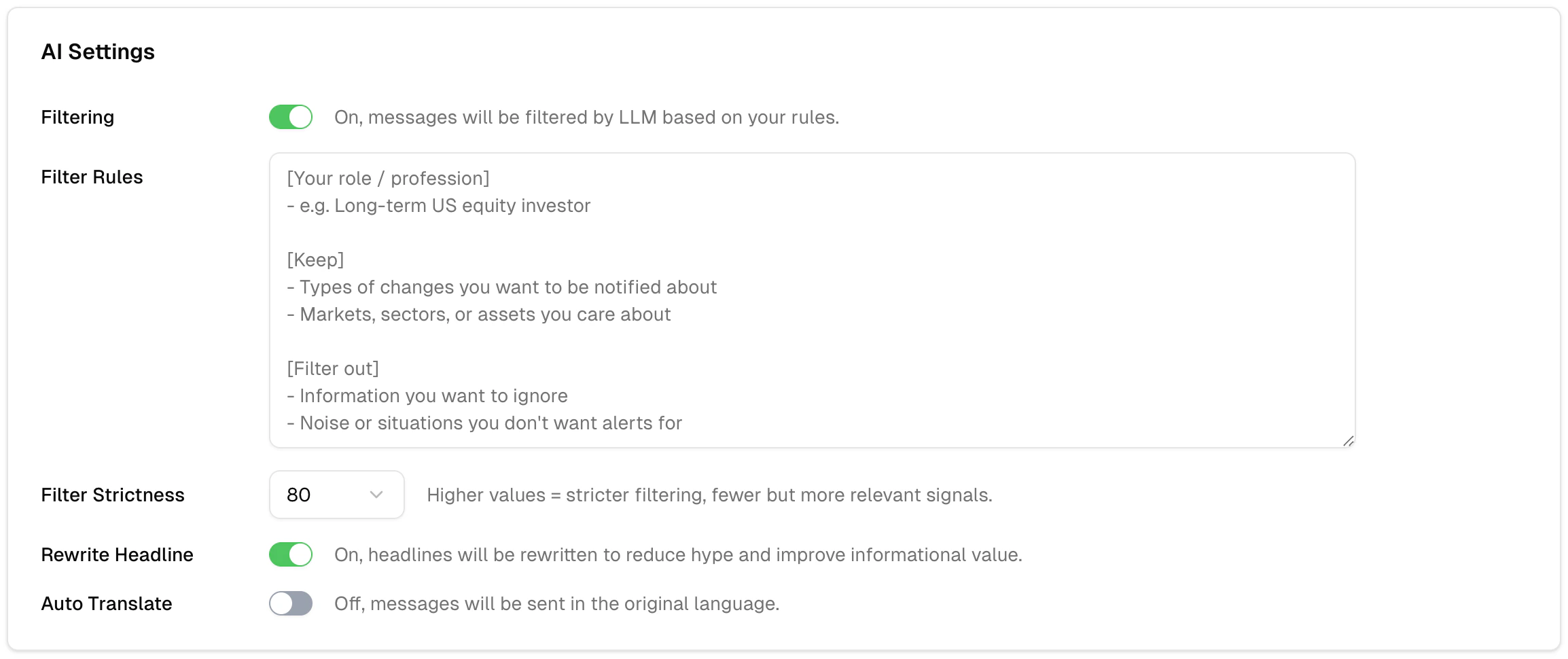 * **Filtering**: Toggle to enable or disable AI-powered filtering. When on, messages will be filtered by the LLM based on your rules.
* **Filter Rules**: The most important setting — it tells the tracker what you care about. For example:
```
[Your role / profession]
- AI news journalist (global coverage)
[Keep]
- Major global AI developments with clear industry impact
- Significant technical breakthroughs from leading AI companies
- Important AI product launches or major feature updates
- Major funding rounds involving high-impact AI startups
- Focus areas:
- Large language models (LLMs)
- Multimodal models
- Speech technologies (ASR automatic speech recognition,TTS text to speech)
- Image, video, and audio generation models
- Robotics and embodied AI
- AI agents
- Semiconductors and accelerators
- Data centers and AI infrastructure
- Data labeling and training pipelines
- Reinforcement learning
- Training and inference infrastructure
[Filter out]
- Pure marketing or promotional content
- Minor business partnerships or small funding rounds
- Opinion or commentary articles,unless written by globally recognized and well-established AI leaders
```
* **Filter Strictness**: Adjust how strictly the AI applies your filter rules. Higher strictness means more aggressive filtering, which may result in fewer signals but higher relevance.
* **Rewrite Headline**: You can choose whether the AI rewrites headlines. We recommend leaving this enabled, as it helps reduce clickbait and misleading titles.
* **Translate Updates**: You can enable translation and choose a target language to receive updates in your preferred language.
### Step 4: Notification settings
* **Filtering**: Toggle to enable or disable AI-powered filtering. When on, messages will be filtered by the LLM based on your rules.
* **Filter Rules**: The most important setting — it tells the tracker what you care about. For example:
```
[Your role / profession]
- AI news journalist (global coverage)
[Keep]
- Major global AI developments with clear industry impact
- Significant technical breakthroughs from leading AI companies
- Important AI product launches or major feature updates
- Major funding rounds involving high-impact AI startups
- Focus areas:
- Large language models (LLMs)
- Multimodal models
- Speech technologies (ASR automatic speech recognition,TTS text to speech)
- Image, video, and audio generation models
- Robotics and embodied AI
- AI agents
- Semiconductors and accelerators
- Data centers and AI infrastructure
- Data labeling and training pipelines
- Reinforcement learning
- Training and inference infrastructure
[Filter out]
- Pure marketing or promotional content
- Minor business partnerships or small funding rounds
- Opinion or commentary articles,unless written by globally recognized and well-established AI leaders
```
* **Filter Strictness**: Adjust how strictly the AI applies your filter rules. Higher strictness means more aggressive filtering, which may result in fewer signals but higher relevance.
* **Rewrite Headline**: You can choose whether the AI rewrites headlines. We recommend leaving this enabled, as it helps reduce clickbait and misleading titles.
* **Translate Updates**: You can enable translation and choose a target language to receive updates in your preferred language.
### Step 4: Notification settings
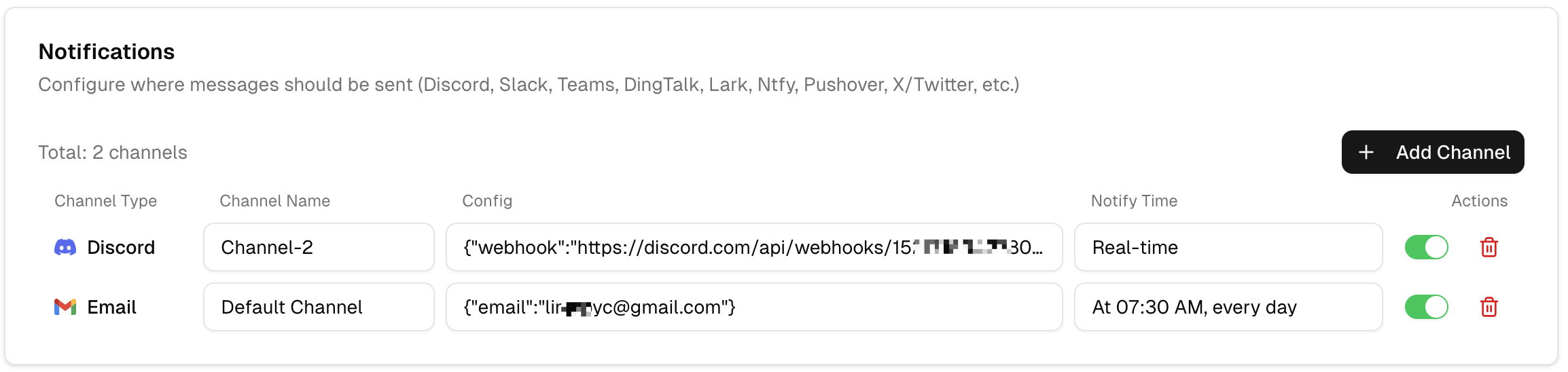 * Choose how you want to receive updates. Available channels include Email, Telegram, Discord, Slack, Microsoft Teams, Google Chat, Ntfy, Pushover, WeCom, Lark, DingTalk, and X/Twitter.
* By default, updates are emailed to your sign-in address once per day at 7:30 AM.
* For the best experience, add a real-time IM (Instant Messaging) channel (e.g., Telegram, Discord or Slack). See the channel setup guides in the Notifications section of the docs.
### Step 5: Sources settings
* Choose how you want to receive updates. Available channels include Email, Telegram, Discord, Slack, Microsoft Teams, Google Chat, Ntfy, Pushover, WeCom, Lark, DingTalk, and X/Twitter.
* By default, updates are emailed to your sign-in address once per day at 7:30 AM.
* For the best experience, add a real-time IM (Instant Messaging) channel (e.g., Telegram, Discord or Slack). See the channel setup guides in the Notifications section of the docs.
### Step 5: Sources settings
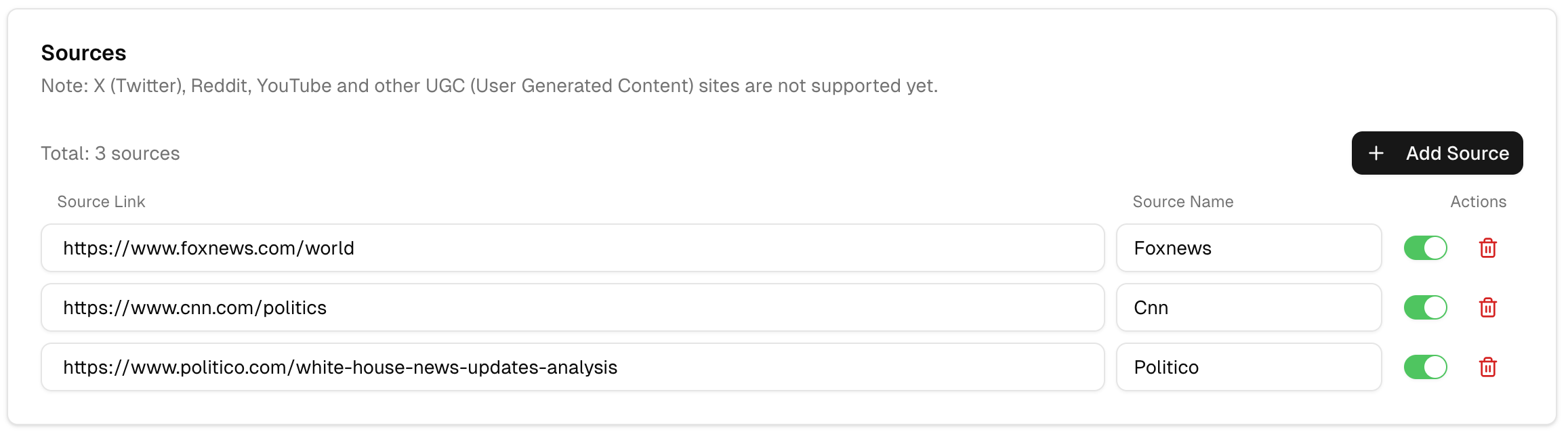 Manage the sources you trust. We recommend configuring 5-20 sources per tracker.
SignalHub supports most websites, including many dynamic and UGC platforms. If a source fails to crawl, please contact us so we can improve support.
Manage the sources you trust. We recommend configuring 5-20 sources per tracker.
SignalHub supports most websites, including many dynamic and UGC platforms. If a source fails to crawl, please contact us so we can improve support.